Fix Common 2FA Issues on Major Platforms
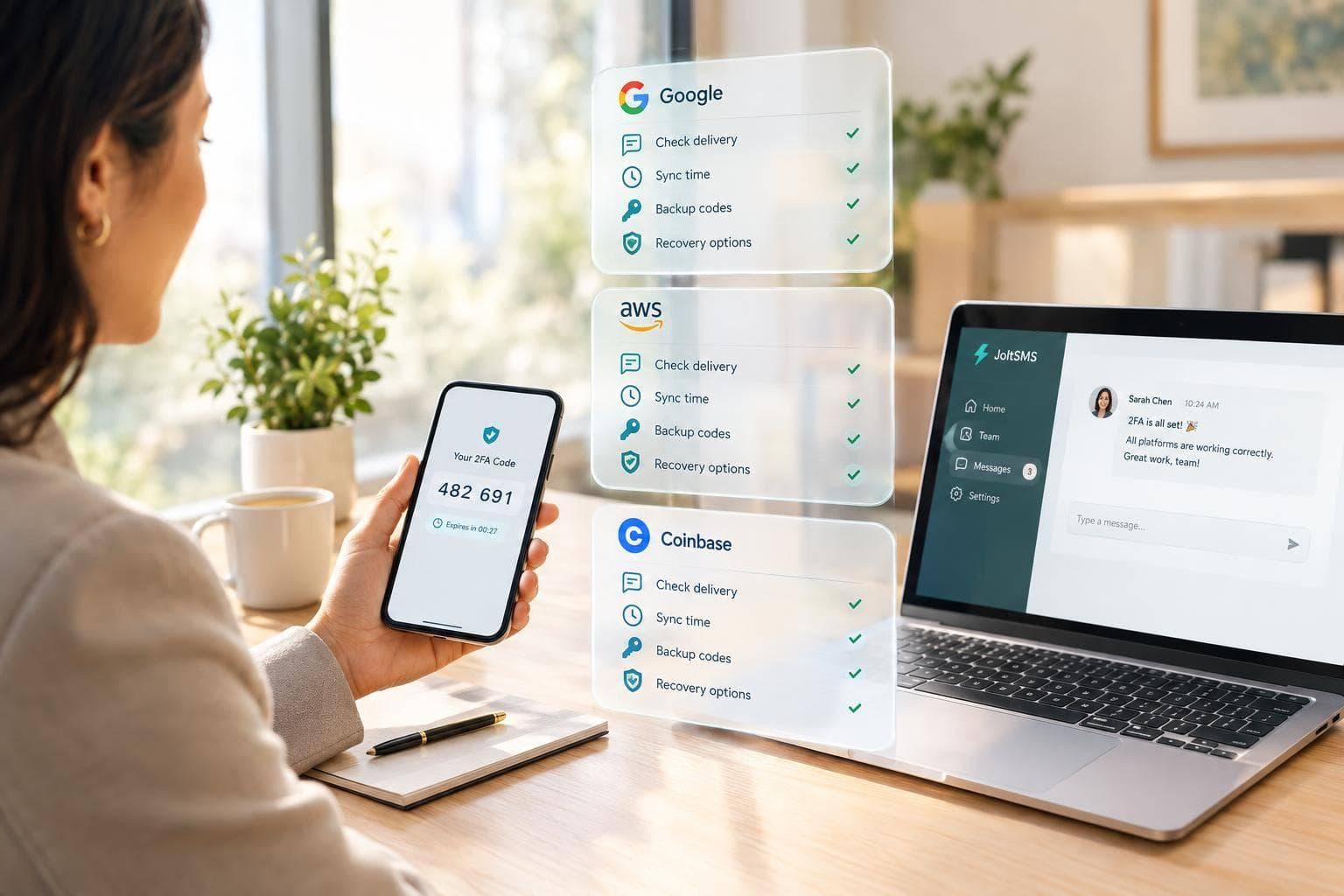
2FA not working? I’d check the account and sign-in method before requesting more codes. For missing texts, check your cellular line and message filters. For rejected app codes, turn on automatic date and time - most codes change every 30 seconds.
Here’s how I’d narrow down the fix:
- Google: Check text or push delivery, device time, and backup sign-in options. If those fail, use account recovery or contact your Workspace administrator.
- AWS: Check whether you’re a root user, IAM user, or signing in through another provider. That determines whether you need device resync, an administrator, or AWS recovery.
- Coinbase: Check code delivery and device time, then use its official recovery process if no enrolled method works.
My rule: don’t keep requesting codes. Follow the wait time shown, try an enrolled backup factor, and <u>never share passwords or 2FA codes</u>.
After recovery, I’d update backup methods and recovery contacts before changing phones. If you rely on SMS, keep the linked number active - a dedicated SIM number does not replace backup factors or official recovery.
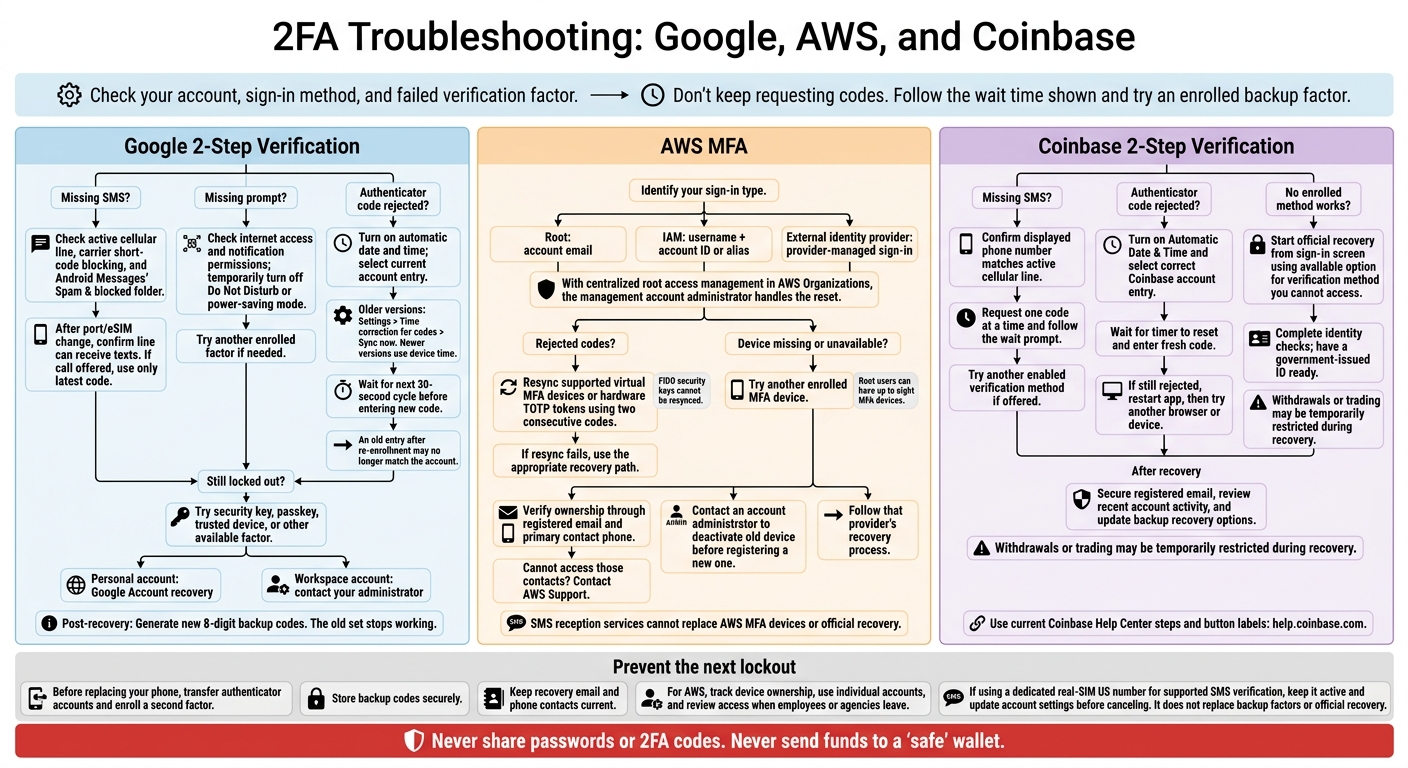
2FA Troubleshooting: Google, AWS, and Coinbase
Fix Google 2-Step Verification Problems
The fix depends on whether Google’s verification problem involves delivery, code sync, or account recovery. Check delivery first, then clock sync, then recovery.
Google SMS Codes or Prompts Are Missing
Regular texts may arrive even when short-code messages are blocked. Ask your carrier whether it blocks automated short-code messages. On Android, check Messages’ Spam & blocked folder.
If codes stopped arriving after you ported your number or changed your eSIM, confirm that the line registered with Google can receive texts. If Google offers a call, use only the latest code - older codes can expire. [4][5][7]
For missing Google prompts, check your internet connection and notification permissions. Temporarily turn off Do Not Disturb or power-saving mode. If prompts still don’t arrive, try another verification factor. [5][3][4]
If an Authenticator code appears but doesn’t work, check time sync next.
Google Authenticator Codes Are Rejected
Check that your device’s automatic time settings are on. Older Google Authenticator versions may offer Settings > Time correction for codes > Sync now. Newer versions use the device’s time settings.
Wait for the next 30-second cycle before entering a new code. If you recently re-enrolled Authenticator, an older entry may still show codes that no longer match your account. [1][9][8][7][5]
If syncing the time doesn’t fix the problem, move to account recovery.
Recover Google Access Without Your Phone or Backup Codes
Try Google’s recovery options: a security key, passkey, trusted device, or another enrolled factor. If none works, use Google Account recovery for a personal account. For a Workspace account, contact your administrator.
After regaining access, generate new 8-digit backup codes. The old set will stop working. [5][7]
sbb-itb-070b8f8
Fix AWS MFA Sign-In Problems
First, confirm how you sign in to AWS. Root users use the account email. IAM users use a username plus the account ID or alias. If your account uses AWS Organizations with centralized root access management, the management account administrator handles the reset.[1]
Next, check whether the problem is rejected codes or a missing device. Each has a different recovery path.
AWS MFA Codes Are Rejected or Out of Sync
AWS can resync supported virtual MFA devices and hardware TOTP tokens using two consecutive codes. FIDO security keys cannot be resynced.[1] If resync fails, move to recovery.
Your AWS MFA Device Is Missing or Unavailable
Try another MFA device if you have one. AWS allows up to eight MFA devices for a root user.[1]
Without another device, follow the recovery process for your identity. IAM users generally can’t recover access themselves. They must contact an account administrator to deactivate the old device before registering a new one.[1]
Choose the Recovery Path for Your AWS Identity
Root users can verify ownership through their registered email and primary contact phone. If you can’t access those contacts, contact AWS Support.[1]
If you sign in through an external identity provider, follow that provider’s recovery process.[1] SMS reception services cannot replace AWS MFA devices or official recovery steps.[1][6]
Keep your recovery email and phone number current.
Fix Coinbase 2-Step Verification Problems
Use Coinbase’s current Help Center recovery steps and button labels.
Coinbase SMS Codes Are Missing
Check that the phone number on the sign-in screen matches your active cellular line.[3][4][5][7][9]
Request one code at a time and follow Coinbase’s prompt to wait. If Coinbase offers another verification method you’ve enabled, use it.[3][6][10]
If the code arrives but doesn’t work, try the authenticator check next. For more help, see our troubleshooting missing codes guide.
Coinbase Authenticator Codes Fail or the App Is Unavailable
Turn on Automatic Date & Time and select the correct Coinbase account entry. Wait for the timer to reset, then enter a new code. If Coinbase still rejects it, restart the app, then try another browser or device.[3][10]
If none of your enrolled verification methods work, use Coinbase’s recovery process.
Recover Coinbase Access and Check Account Security
Start recovery from the sign-in screen by selecting the available option for a verification method you can’t access. Complete the requested identity checks and have a government-issued ID ready. Coinbase may temporarily restrict withdrawals or trading during recovery.[3][10]
Once you regain access, secure your registered email, review recent account activity, and update your backup recovery options.[3][10]
Never share your password or 2FA codes. Never send funds to a “safe” wallet.[3][10]
Conclusion: Prevent Future 2FA Lockouts
Once you regain access, update your backup methods to help prevent another lockout. Match the fix to the factor that failed, use a backup method you’ve already enrolled, and follow the platform’s recovery process when needed.
Keep Backup Factors and Recovery Access Current
Before replacing your phone, transfer your authenticator accounts and make sure a second factor is enrolled. Store backup codes securely.
For AWS, track which user owns each MFA device and keep recovery contacts up to date. Use individual accounts rather than shared credentials. Review access immediately when employees or agencies leave.
If you still use SMS, plan for reliable access to a dedicated number.
Use a Dedicated Real-SIM Number for SMS Verification
If your team relies on SMS codes, separate verification from calling. Use a dedicated real-SIM US number rather than a VoIP line for SMS verification.
A dedicated real-SIM number, such as one from JoltSMS, can help keep supported SMS verification stable. But it doesn’t replace backup codes, authenticator apps, security keys, or platform recovery.
Keep the number active while it’s attached to an account, and update your account settings before canceling it.
FAQs
How can I tell if a 2FA request is a scam?
Watch for warning signs: urgent threats of losing access, requests for 2FA codes or recovery seeds, instructions to transfer assets to verify your identity, or links that don’t match the official domain. Scammers use panic to cloud your judgment.
Verify requests only through the official app or website. Never share OTPs, 2FA seeds, or recovery codes. Be cautious of unfamiliar phone numbers claiming to be support.
Which backup 2FA method is safest?
The safest backups don’t share your primary method’s failure points. Hardware security keys are a best practice because they avoid time-sync issues and interception [1]. Other secure options include a password manager that syncs TOTP across devices, or digital and physical copies of one-time recovery codes [2].
For SMS, VoIP services work well for business calls, but platforms often block them for verification. JoltSMS provides real-SIM numbers accepted by over 1,000 platforms.
How long does 2FA account recovery take?
Recovery time depends on the platform and its verification requirements. Automated recovery may take 24–48 hours. Cryptocurrency exchange accounts or Apple IDs may need manual identity checks, which can take days to weeks. Some services also impose waiting periods to prevent fraudulent access.
Many platforms block VoIP numbers for SMS verification. Real-SIM numbers like JoltSMS can help avoid these blocks and are accepted on over 1,000 platforms.